¶ troubleshooting
¶ What can I do if my machine cannot connect to my computer?
1, Make sure the machine is turned on.
2, Make sure the USB cable is connected to the interface of the machine.
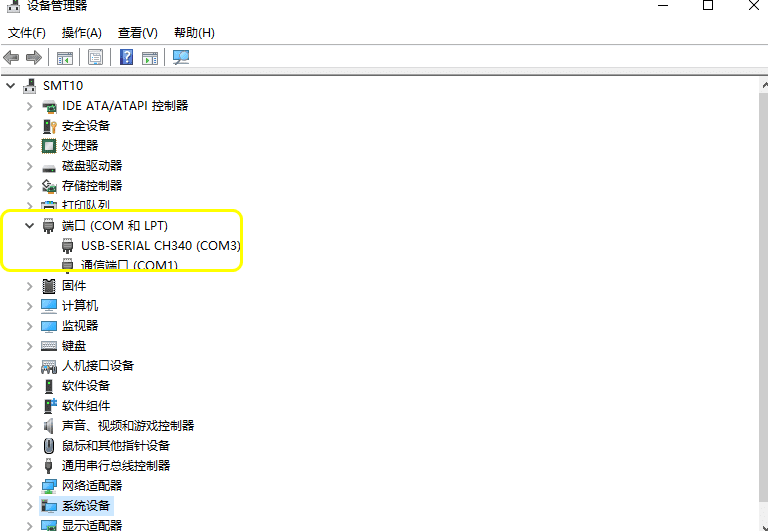
3, check whether the computer can recognize the COM signal of the machine. (or plug it into another port on your computer)
4, If no new com is seen in the previous step, you need to install a CH340 driver. It can be obtained from the TF card file. Alternatively, use the lasergrbl tool to install the CH340 driver.
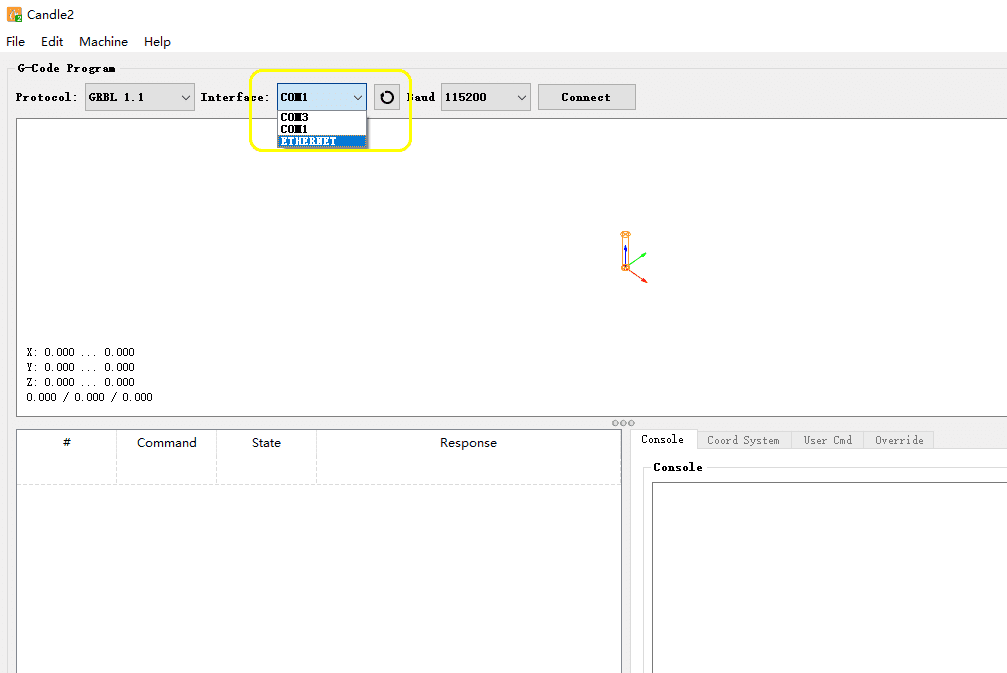
5, set the correct baud rate, 115200;
6, Select the correct "com "port in the software. (You can try every com port);
7, Click Connect.
8, If the above steps still do not connect, please restart your computer, and then repeat steps 5-7. (Because of possible software conflicts).
9, if it still fails, and the dialog box on the left of the software prompts you to update the firmware. Then do the above steps.
10, If you cannot connect and control the machine with candle, but easle or GRBL software can, there is something wrong with the candle installation package. Please uninstall it completely and go to the official website of candle to download and install it again.
¶ How to deal with abnormal noise from the machine?
It can be caused by two things:
1.Beyond the machine’s working schedule。
Try the following: Set the software parameters according to the nominal working size of the machine
2.Drive friction, please try to do the following:
- Turn off the power of the machine, manually move the X axis left and right, move the Y axis back and forth, and check whether there is stuck or difficult to move.
- Test each drive component individually, including checking the drive voltage (The voltage should be within 1.6V).
- Adjust screws or add lubricants according to the conditions of different parts to reduce friction.
¶ I cannot start the machine. What can I do?
- Ensure that the adapter or power cable is connected to the power supply, and observe whether the indicator is on.
- Press the switch repeatedly to see if there is any change in the machine.
- Remove the TF memory card and then restart the machine.
- Unplug all motor cables, disconnect them, and then restart the machine. If you can start the machine, plug back the cables one by one. When the machine shuts down again, there may be a problem with the inserted cable.
- Open the control board box and check whether the switch cable falls off.
- Try to use another adapter with the same specifications.
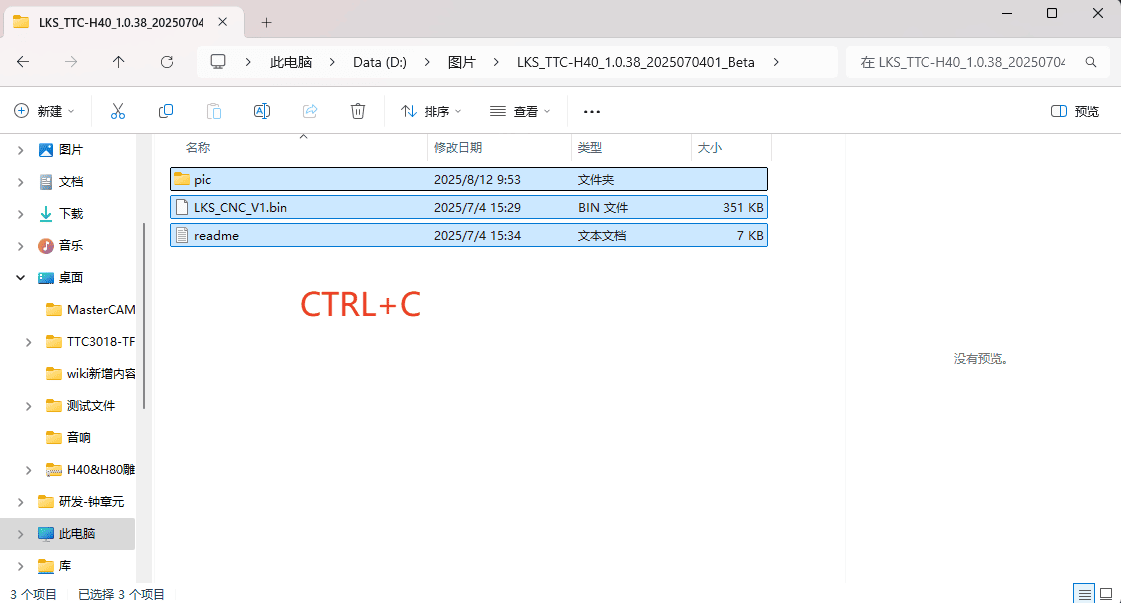
Step 1
- First, copy all three files within the firmware file.
|
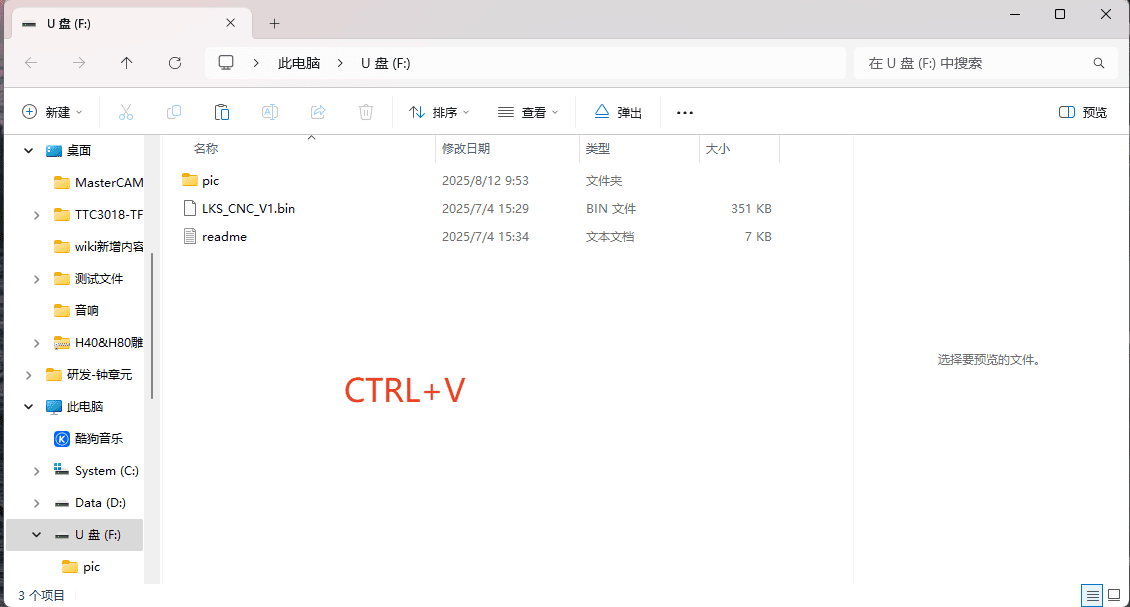
Step 2
- Copy the copied files to the TF card (Note: The TF card needs to be formatted with FAT32 first and then cleared before being inserted into the firmware)
|
Step 3
- Insert the TF card containing the firmware into the control box.
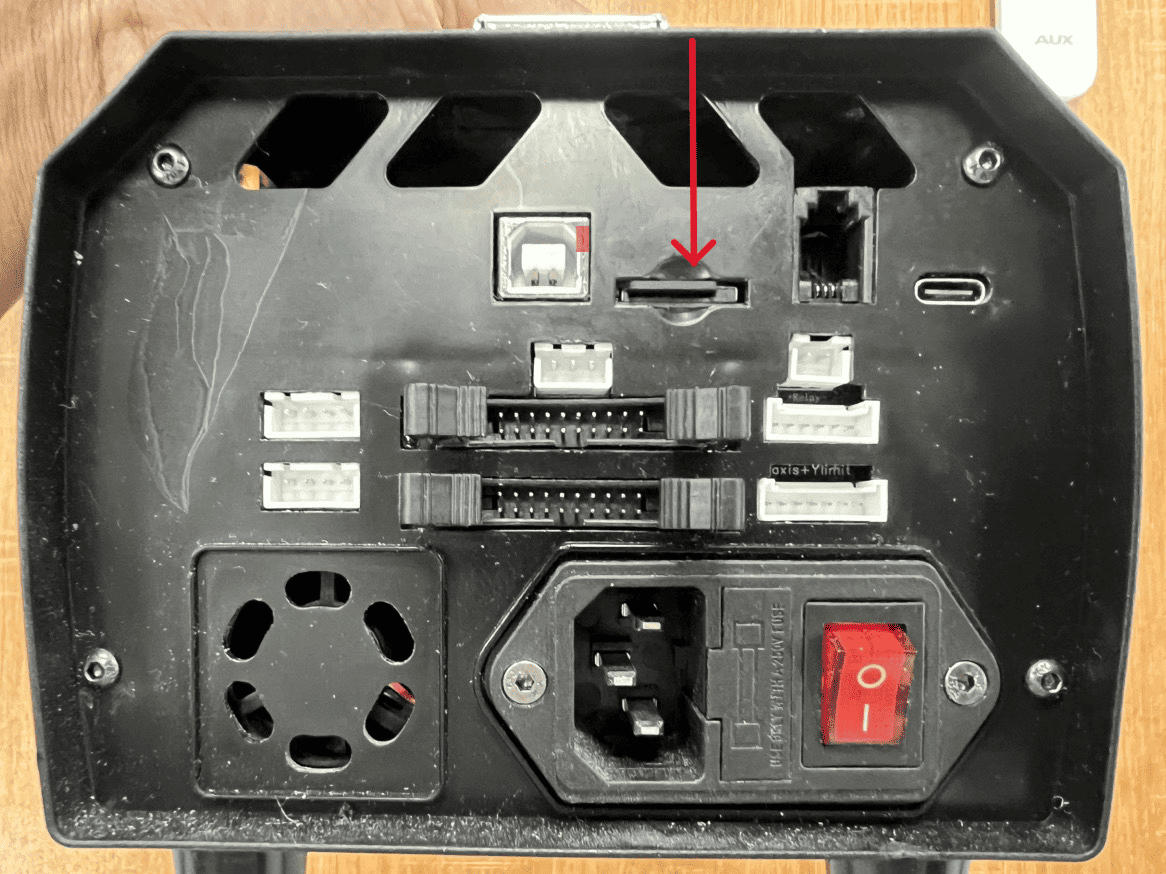
|
Step 4
- Insert the power cord to perform automatic firmware update upon startup
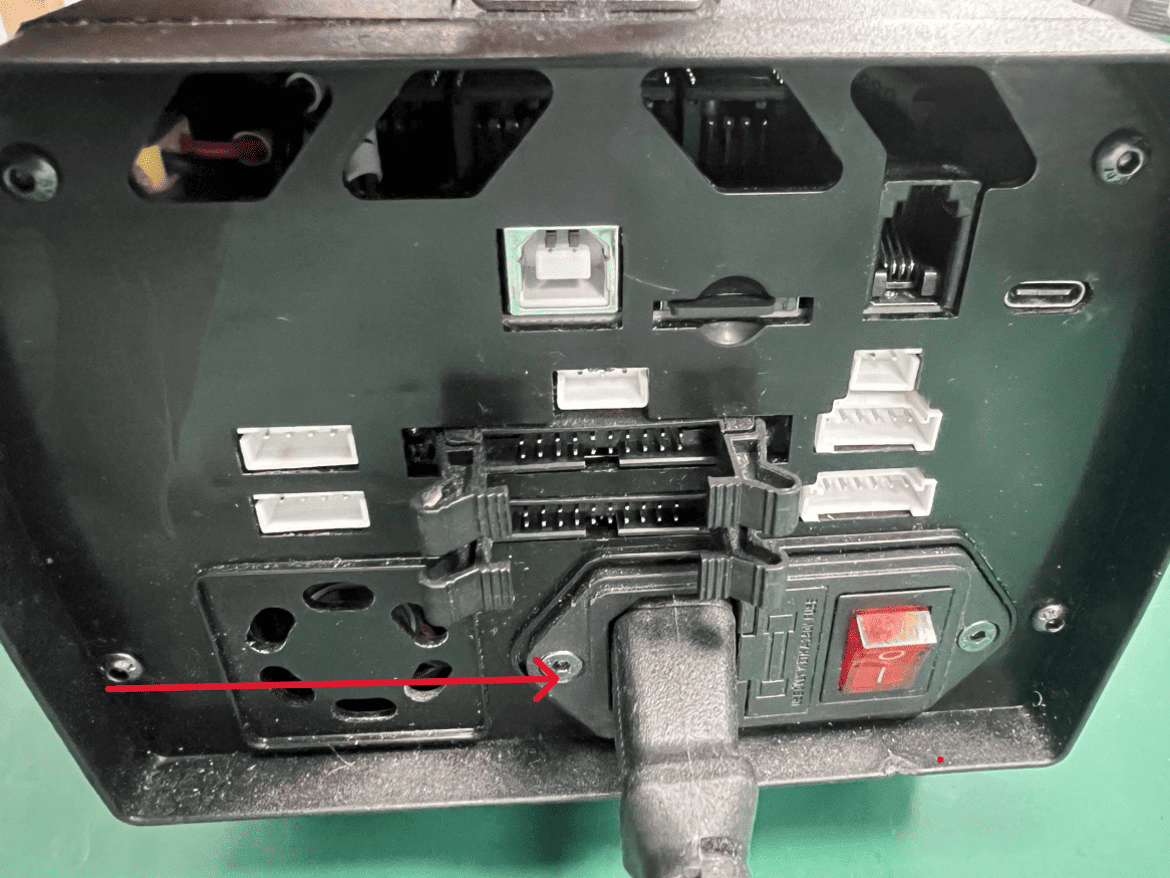
|
Step 5
- Once the progress bar has completely finished moving, the operation interface will be displayed and the firmware will be refreshed.
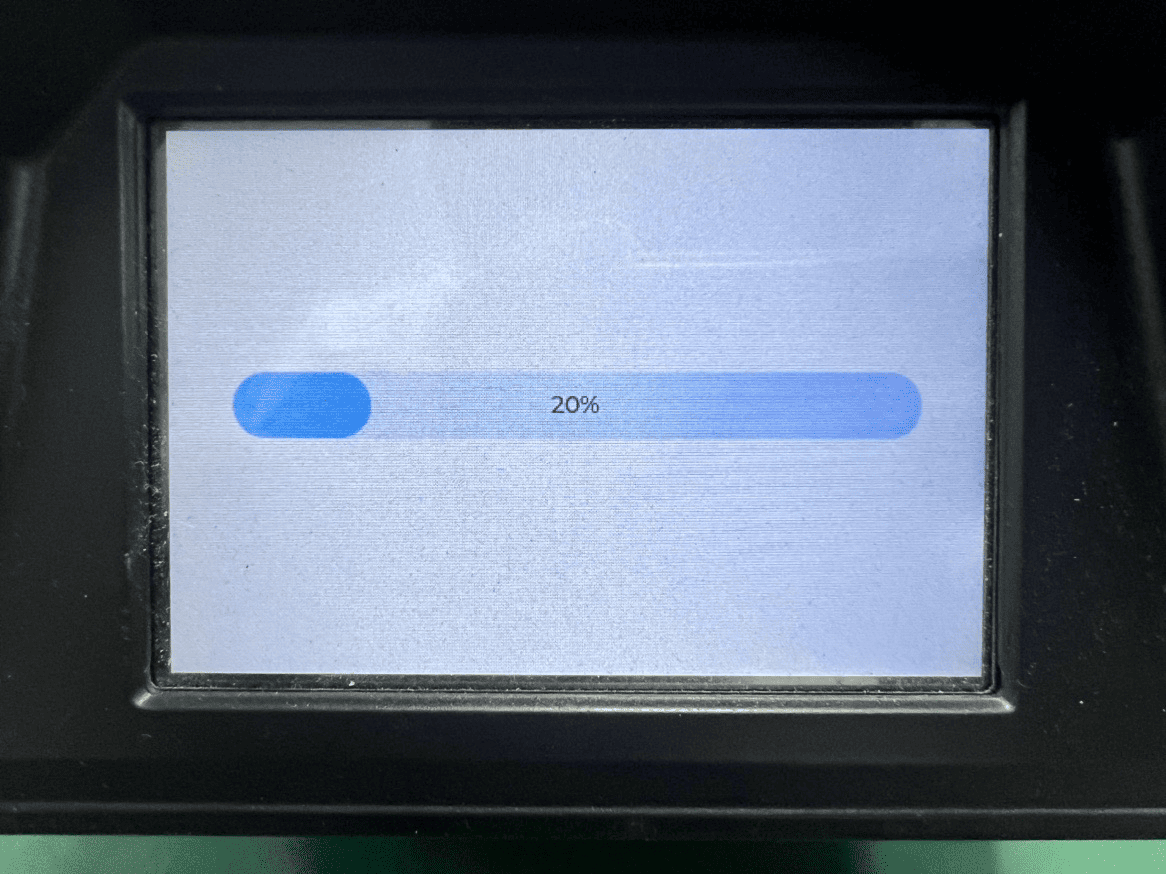
|
¶ How to deal with the opposite direction of the machine axis?
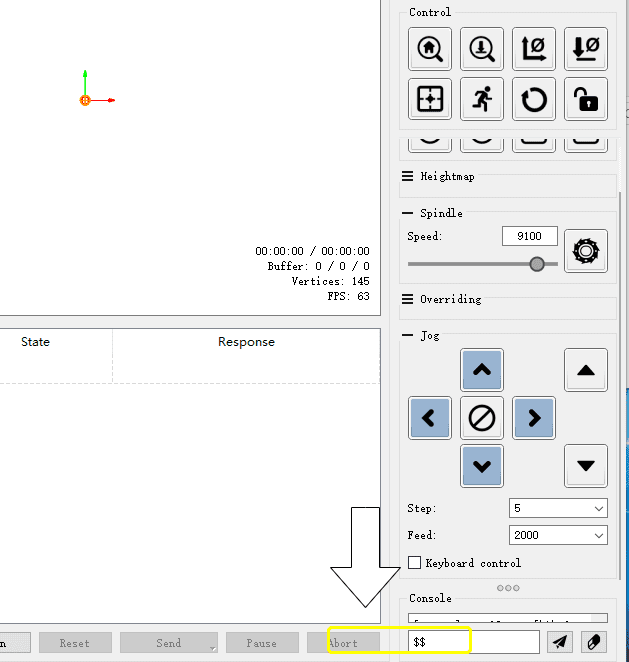
Once you have successfully connected the software to the machine, follow these steps:
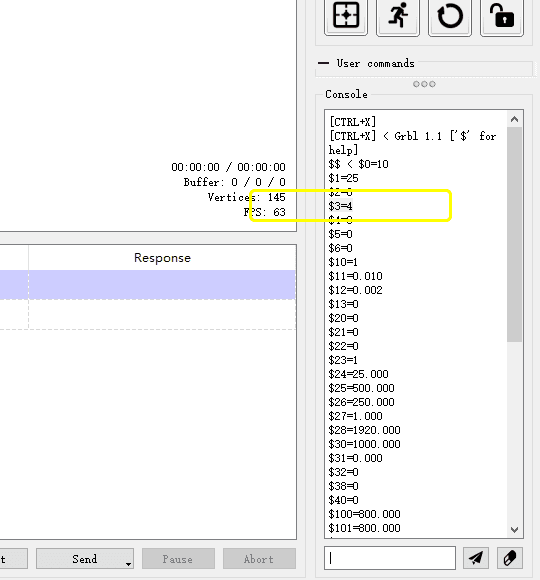
- Enter $$in the control box to display the parameter page.
- Find the value of the parameter $3.
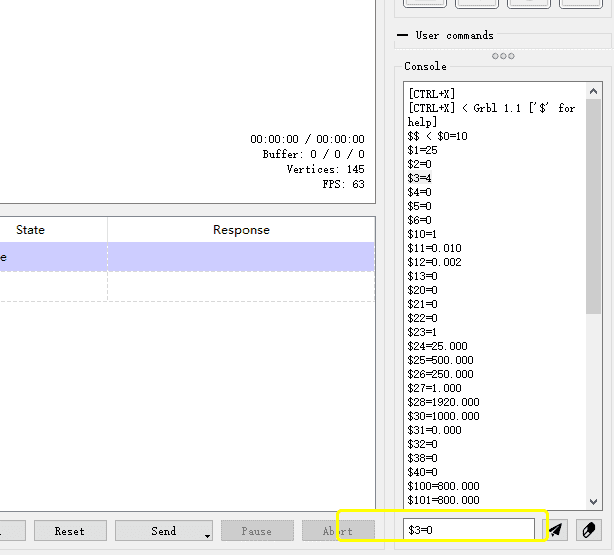
- Modify the value of $3 by following the following commands:
- $3=0
- $3=1
- $3=2
- $3=3
- $3=4
- $3=5
- After each modification, check that the direction of movement of each axis is correct。
- Try up to 6 times until each axis moves in the correct direction。
¶ The machine screen appears blue screen (white screen), can not operate how to solve?
-
Loosen the four screws on the back of the screen and try turning it on again. If the problem returns to normal, consider adding insulation spacers when you put the screws back in.
-
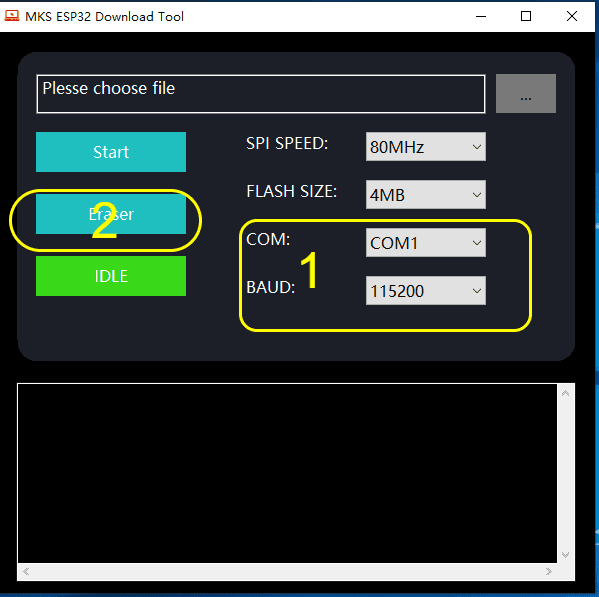
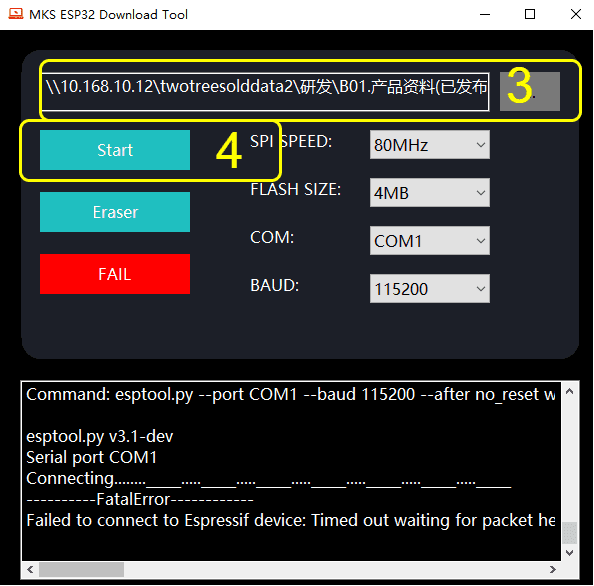
Try to rewrite the firmware for the machine, and then turn it on again. Check to see if the problem is resolved.
-
If the above methods can not solve the problem, please contact us, we will replace the screen for you.
¶ When the screen is not displayed
1.Checking network cable connections:
Ensure that the network cable is securely connected. If the network cable is loose, tighten the connection again, or replace the network cable and restart the machine.
2.Loose wiring:
During the transport of the machine, vibrations may occur, and these vibrations may cause the electrical plug inside the machine to loosen, resulting in poor contact or complete non-contact. When this happens, the screen may appear white and not work properly. Please check whether there is any problem with the cable.
3.The mainboard or screen is faulty:
If you exclude the problem of network cable connection and loose screen, and the screen is still unable to display, it may be the motherboard or screen fault. If there are multiple machines of the same model, you can try to replace a screen that displays normally on the machine in question. If the replacement screen can display normally, then the original screen may be faulty; If it still cannot be displayed after replacement, there may be a problem with the motherboard. If you encounter this situation, please contact after-sales service for further processing.
¶ Motherboard does not read cards
1.SD card problem:
- First, check if the SD card works properly on your computer. If you can, try to format the SD card while backing up the files.
- Insert the formatted SD card into the mainboard for a power-on test. If the mainboard still cannot recognize the SD card, it indicates that the SD card may have a problem, and it is recommended to replace it with a new SD card.
2.Check whether the card slot is loose:
- Long-term use may cause the card slot to shake, resulting in poor card reading. If the card slot is suspected to be loose, a new card needs to be replaced.
- Sometimes the card may be suddenly unresponsive for some time after insertion. Try inserting and unplugging the card a few times quickly, then turn off the power, clean the card slot with alcohol, and insert the card again a few times. If it still cannot be used normally after cleaning, a new booth may need to be replaced.
¶ Engraving appears to lose step, resulting in the problem of split-layer
1,Check whether the feed unit is wrong, the unit used in the system is (mm/min), if the unit in the programming software is mm/s, then the set value should be multiplied by 60 for example: (The unit used by the programming software is 30/s, and it will be 30x60=1800mm/s when used on the machine), be careful not to set the feed rate too large to avoid damaging the machine
2.It is necessary to check the driver of the corresponding shaft to see if there is any overheating. You can try to reduce the feed rate to see if there is any improvement, or you can swap the XY drives to see if the misaligned shaft has been swapped. If it still doesn’t work, please contact technical support as soon as possible for handling